
Start with a working sales dashboard
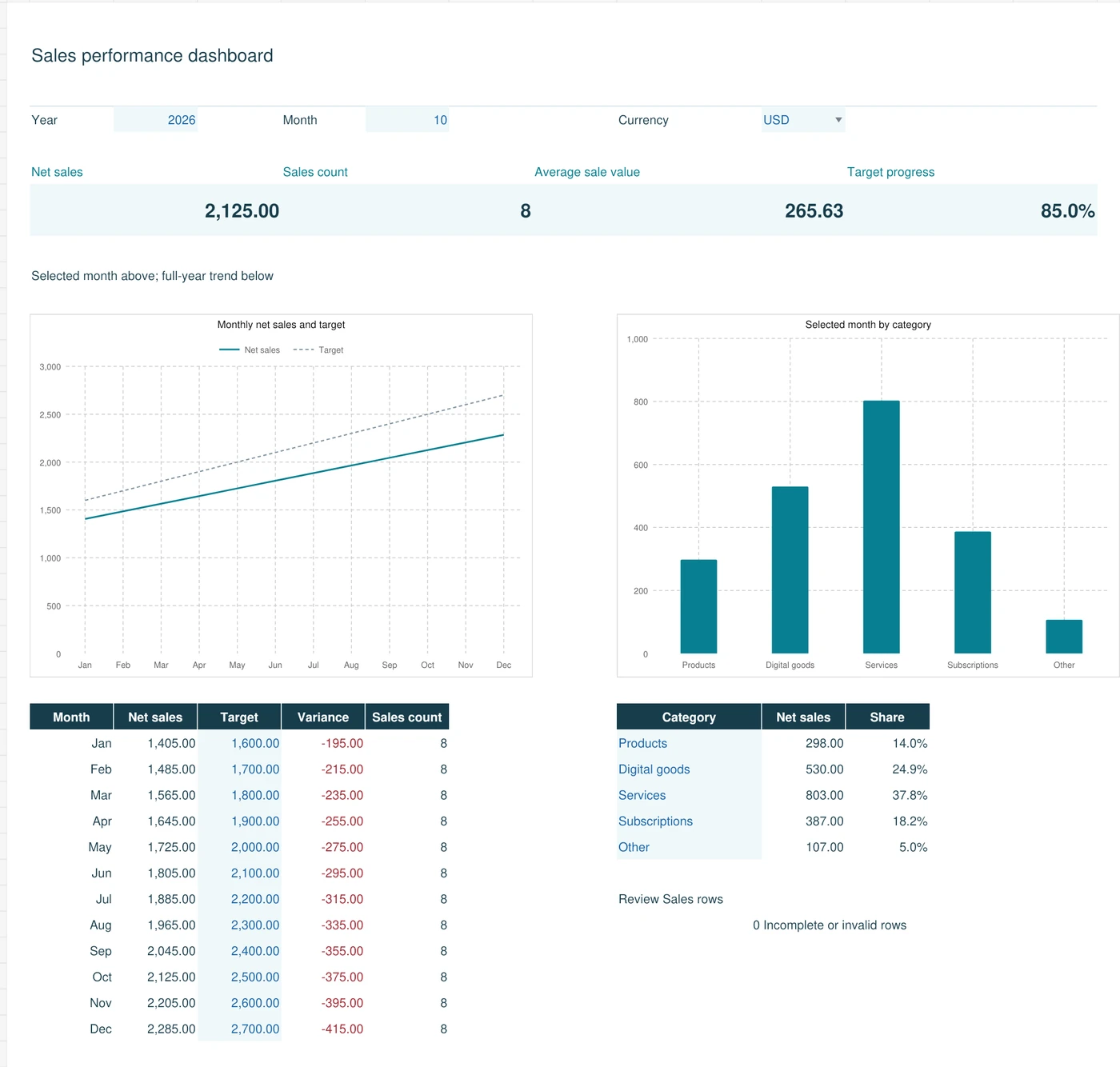
This free Excel sales dashboard template brings monthly net sales, sales count, average sale value and target progress into one view. Replace the fictional records with your own completed sales, choose a reporting month and review the results.
Excel workbook (.xlsx). No signup, macros or external data connections. Includes 96 fictional sample sales and space for 500 sales records.
A spreadsheet dashboard is useful when the data behind it is consistent. This template keeps the input and summary on separate sheets, so you can see what you entered and trace the totals without maintaining a different file for every month.
What is included in the Excel dashboard template?
Review a month and its full-year context
- Net sales: quantity multiplied by unit price, less the discount amount.
- Sales count: the number of valid completed-sale rows in the selected month.
- Average sale value: monthly net sales divided by sales count.
- Target progress: monthly net sales divided by the target you enter.
- Charts and detail: a full-year monthly trend and a selected-month category breakdown.
Keep the records behind the results
Each row contains the date, unique Sale ID, category, channel, quantity, unit price and discount. The last column calculates net sales.
The workbook provides 500 prepared rows. Fictional data fills the first 96, covering January through December 2026. Blank prepared rows do not contribute to totals.
How to use the monthly sales dashboard
- Save a working copy. Keep the original download so you can compare formulas or restart with a clean copy.
- Review the sample first. Select a different month and see which cards and category values change. The full-year trend continues to show the selected year.
- Replace the sample inputs. Clear the fictional values in Sales columns A:G before adding your records. Keep the formulas in column H.
- Set the controls. Choose the year and month on Dashboard. Review the monthly targets and five category labels, which are editable input cells.
- Check the output. Resolve highlighted input issues and duplicate Sale IDs, then compare the dashboard with your original sales records.
Use a real Excel date for each sale. The workbook displays dates as year-month-day to reduce ambiguity across the US, UK, Australia and Canada. If imported dates remain text, convert and verify them before relying on the monthly totals.
What should one sales row represent?
Use one row for one completed sale with a unique Sale ID. For a simple product sale, enter the quantity and unit price. For an order containing different products or prices, use one summarized order row: quantity 1, the order's pre-discount value as unit price, and the order discount. Assign one reporting category consistently.
This starter workbook does not calculate distinct orders from multiple line items. If you enter three rows for the same order, the sales count can become three. Duplicate Sale IDs are highlighted for review but are still counted until corrected. A business needing item-level detail and distinct-order counts should use a different data model.
Use one currency throughout the workbook
The currency selector offers USD, GBP, AUD and CAD as labels. Changing the label does not convert the amounts. Keep all prices, discounts and targets in the same currency, and use a separate working copy for another currency unless you first prepare an agreed conversion process.
Tax, shipping, payment fees, costs and profit are not calculated. Set a consistent reporting basis for the sales values you enter and document it with your source records. The template reports the entered sales data; it does not connect to your accounting or ecommerce platform.
How the calculations work
Every valid row calculates quantity × unit price − discount. Monthly totals use the sale date, including records from the first day of a month up to the start of the next month. The template uses standard formulas rather than a macro or a paid add-in. Microsoft's SUMIFS documentation explains the conditional-summing function used in the monthly and category summaries.
When a month has no valid sales, net sales and sales count show zero. Average sale value shows “n.a.” because there is no sale count to divide by. A zero target also produces “n.a.” for target progress; set a positive target when you want that comparison.
Checks before sharing your report
Check the source records
- Remove every fictional sample input.
- Confirm dates are numeric Excel dates in the intended year.
- Use unique Sale IDs and consistent category names.
- Enter 0 when there is no discount.
- Keep quantity positive and discount no greater than the gross sale.
Check the summary
- Resolve the Dashboard's “Review Sales rows” count.
- Compare monthly net sales with your source report.
- Check the month, year, currency and target values.
- Make sure category names match the five Dashboard labels.
- Keep inputs within the 500 prepared rows.
Incomplete or invalid rows display “Check input” and are excluded from the numerical totals. That makes the review count important: a plausible-looking total can still be incomplete. If you exceed row 505 on Sales, extend both the row formulas and every relevant dashboard range before using the extra records.
When a custom Excel sales dashboard makes sense
The free workbook is a starting point for a straightforward monthly report. A custom dashboard may be more suitable when you need several source files, a product hierarchy, distinct-order counts, multi-currency reporting or a repeatable import process.
Explore custom Excel dashboard services for a workbook designed around your actual inputs and reporting needs. For source cleanup and recurring summaries, see data analysis and reporting support. If you want to understand the planning process first, read how to build an Excel dashboard for a small business.
Excel sales dashboard template FAQs
Is this Excel sales dashboard template free?
Yes. You can download it without signing up and adapt it for your own business. The file contains sample data to replace before use. Custom changes or ongoing reporting support are separate services.
Does it update when I enter new sales?
The formulas update the dashboard from valid sales entered in the prepared rows. Keep Excel's calculation setting on Automatic. The template supports 500 sales rows; adding data beyond that range requires extending the formulas and summaries.
Can I use it on a Mac or in Google Sheets?
The file is an .xlsx workbook designed for desktop Excel, using standard spreadsheet formulas and no macros. It has not been verified in every Excel version or in Google Sheets. After importing it into another application, check formulas, charts, validation and totals before using the report.
Can I change the categories and targets?
Yes. Edit the five category labels and monthly targets on Dashboard. Update existing sales categories to match any renamed labels. Targets apply to the year you are reviewing, so revise them if you change the year.
Start with the free template, then list what your business needs beyond it. Request dashboard support when you need help turning that list into a defined workbook scope.